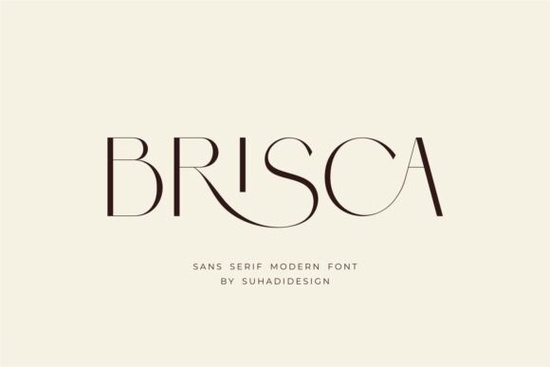
Finding the right typeface for a new brand identity often means balancing readability with a distinct personality. If you are working on a cosmetics line, a lifestyle magazine, or a modern clothing label, you need clean lines and subtle stylistic details. The Brisca Font is a modern sans serif that brings a classy, elegant feel to these types of projects. It includes built-in ligatures, which automatically connect specific letter combinations to create a smoother, more custom look without requiring extra design work.
What makes a sans serif work for beauty and lifestyle branding?
When designing for cosmetics or high-end boutiques, the typography needs to feel approachable but polished. Standard geometric styles can sometimes look too rigid or corporate for a beauty brand. This typeface solves that issue by incorporating subtle curves and stylish ligatures that give the text a bespoke quality.
For small business owners creating their first logo or wordmark, these small details matter immensely. The ligature feature ensures that letters flow together naturally, avoiding awkward gaps. This keeps your branding looking professional across business cards, social media graphics, and product packaging. Beyond print, this clean aesthetic translates perfectly to digital spaces, ensuring your website headers and social media templates remain sharp on high-resolution screens. If you are exploring other options in this style, browsing through similar sans serif options can help you compare different letterforms before making a final decision.
How do you apply this typeface to print-on-demand and packaging?
Print-on-demand sellers and crafters need fonts that scale well and remain legible on various physical materials. Whether you are printing a minimalist design on a cotton tote bag or creating custom labels for glass candle jars, the thickness and spacing of the letters are crucial.
- Apparel: Use the bolder weights for short, impactful quotes on t-shirts or hoodies. The clean lines ensure the text prints crisply, even on textured fabrics.
- Packaging: For product boxes or tissue paper, the lighter weights provide a delicate, high-end look that does not overwhelm the physical product.
- Stationery: Designing wedding suites or custom notebooks requires a typeface that looks good in both large headers and smaller body text.
When creating digital mockups for your online store, using a consistent typeface across all product images helps build instant brand recognition with your customers. If your current project requires a slightly different vibe, you might want to look at a clean minimalist alternative to see how varying stroke widths affect the final printed result.
Which fonts pair best with a stylish sans serif?
Pairing fonts is one of the most common challenges for creative hobbyists and freelance designers. A good rule of thumb is to contrast your primary font with something that has a completely different structure.
Since this typeface is sleek and contemporary, it pairs beautifully with a classic serif or a handwritten script for secondary text. For example, use the sans serif for your main logo and headlines, then switch to a traditional serif for the longer paragraphs in a magazine layout or website.
Establishing a clear visual hierarchy is just as important as the pairing itself. Use the heavier weights of your sans serif for main titles, and reserve the lighter weights for subheadings to guide the reader's eye naturally down the page. If you want to keep everything within the same general family but need more variety, checking out a heritage-inspired alternative can add a bit of vintage warmth to your layout. Alternatively, if your design needs to feel a bit more rugged or industrial, a more rugged, textured option might provide the exact contrast you need for a striking poster.
How should you prepare your files before printing?
Before you finalize your design files and send them to the printer or upload them to your online store, run through this quick setup checklist to avoid common production errors:
- Check the ligatures: Make sure your design software has the ligature feature turned on in the OpenType panel to see the connected letters properly.
- Test the tracking: Adjust the letter spacing slightly for all-caps headers to improve overall readability and balance.
- Convert to outlines: If you are sending files to a commercial printer, convert your text to vector outlines so they do not need to install the font on their machines.
- Review the license: Double-check your commercial use rights, especially if you are embedding the font in a digital product or using it for high-volume physical merchandise.
Taking a few extra minutes to verify these settings will save you from costly reprinting mistakes and ensure your typography looks exactly as intended on the final product.
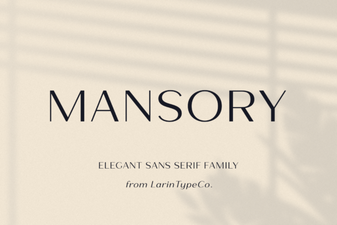 Crafting Digital Luxe: the Mansory Font Guide
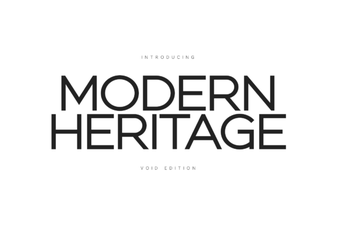 Contemporary Fonts Connecting Legacy & Innovation
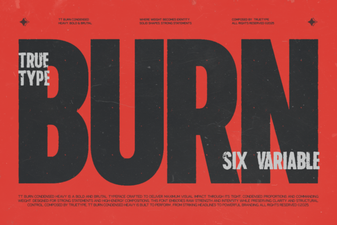 Download the Creative Trt Burn Font for Digital Art
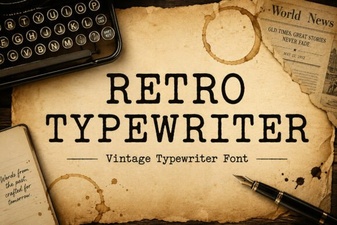 Craft Vintage Documents with a Classic Typewriter Font
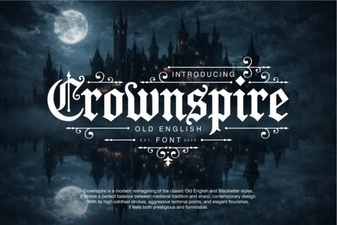 Crownspire Font: Creative Typography Projects
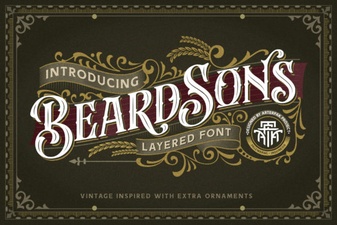 Beardsons Font: Modern Display for Creative Projects